Before you start
Logstash on Windows is a portable folder. There is no MSI installer and nothing is written to the registry: you extract the archive, point Logstash at a pipeline file and run a batch script. That makes it easy to try on a workstation and just as easy to remove.
- Windows edition: a 64-bit version of Windows. The linked package is built for x86_64, so it is not the right file for Windows on ARM.
- Java: nothing to install. The ZIP contains a
jdkfolder with a Java runtime that Elastic tests against this release. For 9.5.6 the Windows package keeps Temurin 21.0.12.1 with the affected eMudhra (emSign) root certificate removed from its trust store, while other platforms moved to 21.0.13. - Disk and memory: leave room for the extracted files, the
datafolder (queues and plugin state) and logs. The default heap inconfig\jvm.optionsis 1 GB, so a machine with 4 GB of RAM or more is comfortable for testing. - Permissions: an ordinary user account can run Logstash from a folder it owns. Administrator rights are only needed later if you register a Windows service.
Download and verify the archive
Use the button in the LogStash download section to fetch logstash-9.5.6-windows-x86_64.zip from artifacts.elastic.co. Elastic publishes a SHA-512 checksum next to every artifact (the same file name with .sha512 added). Compare it before you extract anything:
certutil -hashfile logstash-9.5.6-windows-x86_64.zip SHA512The long hexadecimal value printed by certutil must match the value in the .sha512 file exactly. If it does not, delete the download and fetch it again rather than trying to use it.
Extract to a short path
Extract to a short folder without spaces, such as C:\logstash. Deeply nested paths can run into the Windows path-length limit because the bundled gems create long directory trees, and paths with spaces are a common cause of quoting mistakes in service definitions.
File Explorer's built-in extraction works but is slow with tens of thousands of small files. Windows 10 and 11 include tar, which handles ZIP files and is much faster:
cd %USERPROFILE%\Downloads
tar -xf logstash-9.5.6-windows-x86_64.zip -C C:\
ren C:\logstash-9.5.6 logstash
Keeping the version out of the folder name means scripts and service definitions do not need editing after an upgrade. If you prefer to keep versions side by side, use C:\logstash-9.5.6 and update the paths below.
Write and run a first pipeline
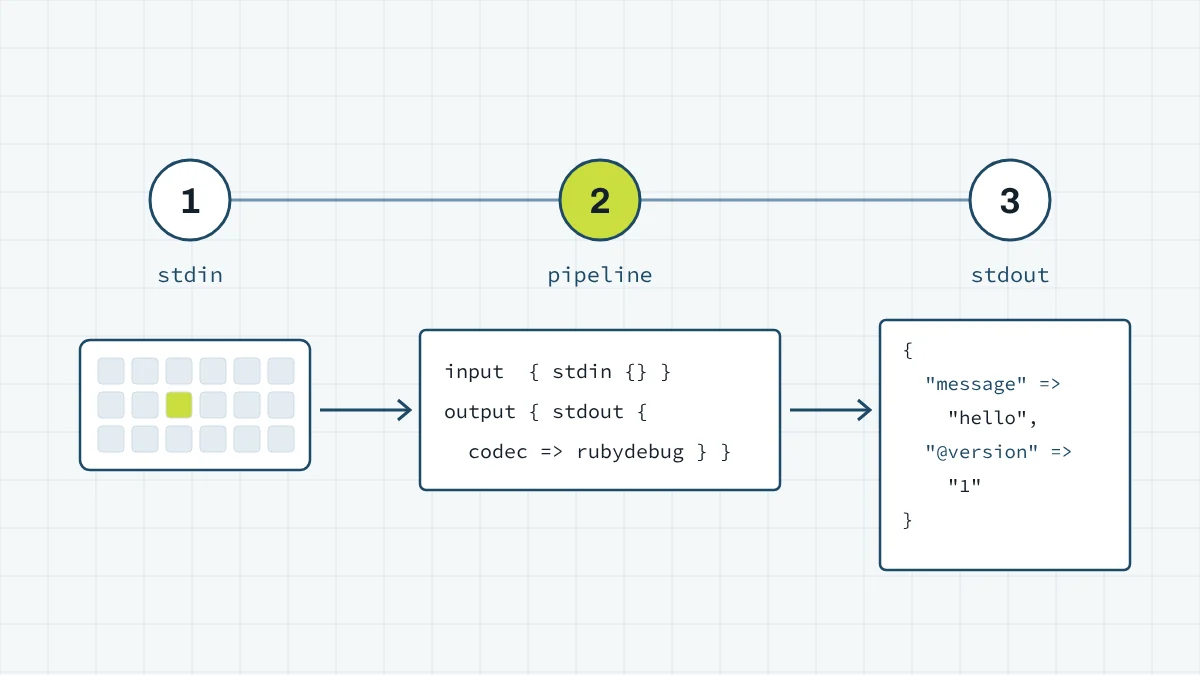
Create C:\logstash\config\first.conf in a plain-text editor. This pipeline reads lines you type and prints each one back as a structured event:
input {
  stdin { }
}

output {
  stdout { codec => rubydebug }
}
Open Command Prompt in C:\logstash and check the syntax first. --config.test_and_exit parses the file, reports problems and exits without starting the pipeline:
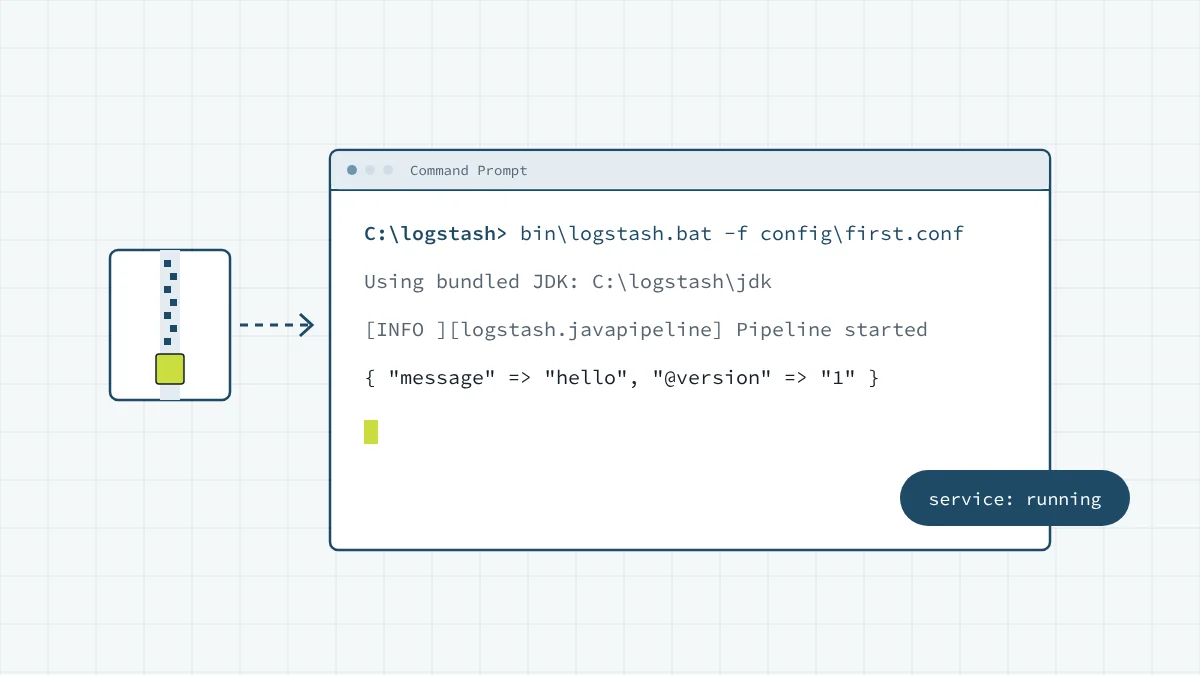
bin\logstash.bat -f config\first.conf --config.test_and_exitWhen it reports Configuration OK, start it for real:
bin\logstash.bat -f config\first.confStartup takes a little while because the JVM loads JRuby and the plugins. Once you see Pipeline started, type hello and press Enter. Logstash prints an event with message, @timestamp, @version and host fields. Press Ctrl+C to stop it cleanly.
Reading log files on Windows
The file input is where Windows setups most often trip up. Two habits avoid most of the trouble:
input {
  file {
    path => "C:/logs/app/*.log"
    start_position => "beginning"
    sincedb_path => "NUL"
  }
}- Use forward slashes in
path. Backslashes are escape characters in the config language, and glob patterns such as*.logonly work with forward slashes. - Understand sincedb. The file input remembers how far it has read each file. While testing,
sincedb_path => "NUL"(the Windows equivalent of/dev/null) makes Logstash forget that position on every run, so the same sample file is read again. Remove that line in production so restarts carry on where they stopped. start_position => "beginning"only applies to files Logstash has never seen before. It does not rewind files that already have a sincedb entry.
Running Logstash as a Windows service
The ZIP does not include a service installer, so a long-running Windows deployment needs a service wrapper. NSSM (the Non-Sucking Service Manager) is a common choice: it runs logstash.bat, restarts it if it exits and can capture console output.
First move your pipeline definitions into config\pipelines.yml so the service can start Logstash without command-line flags:
- pipeline.id: main
  path.config: "C:/logstash/config/conf.d/*.conf"
Then, from an elevated Command Prompt:
nssm install Logstash "C:\logstash\bin\logstash.bat"
nssm set Logstash AppDirectory "C:\logstash"
nssm set Logstash Start SERVICE_AUTO_START
nssm start Logstash
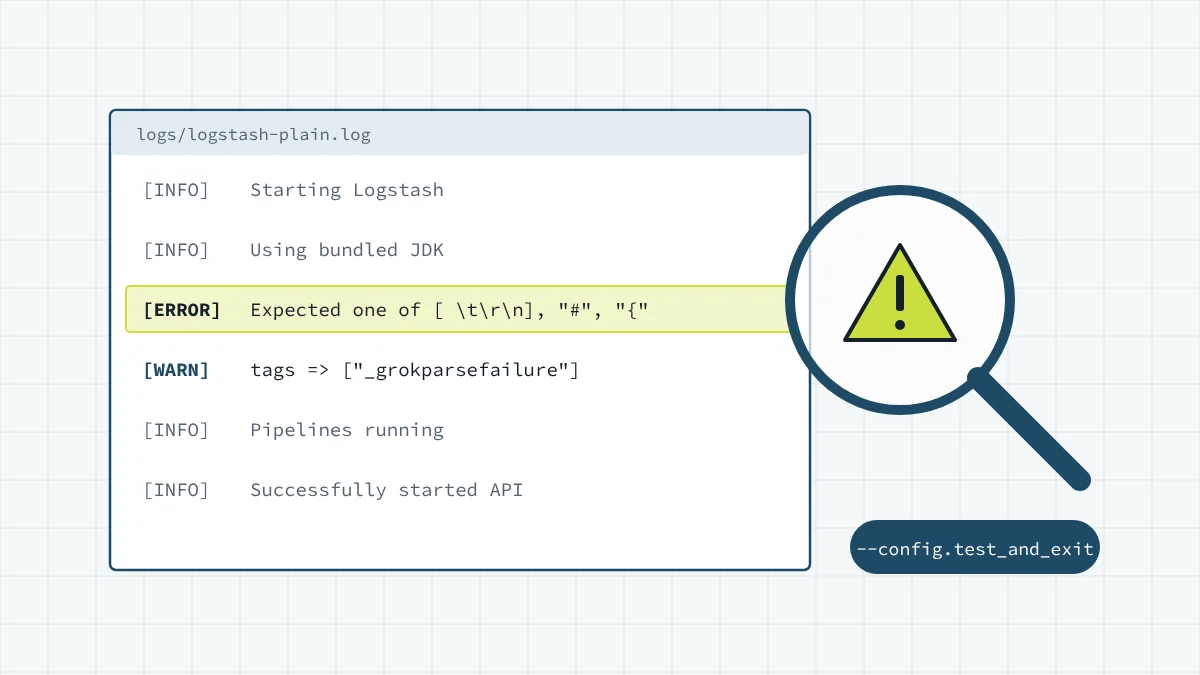
Logstash writes its own logs to C:\logstash\logs\logstash-plain.log, which is the first place to look if the service starts and then stops. Run the service under a dedicated low-privilege account that can read your log folders and write to C:\logstash\data and C:\logstash\logs, rather than LocalSystem.
Upgrading a Windows install
- Read the release notes and breaking changes for every version between yours and the target. The 9.5 series, for example, moved the Kafka integration to 12.x and removed the
pipeoutput from the default bundle. - Stop the service and extract the new ZIP to a fresh folder.
- Copy across
config\logstash.yml,config\pipelines.yml,config\jvm.optionschanges, your pipeline files andconfig\logstash.keystoreif you use the secrets keystore. - Reinstall any plugins you added with
bin\logstash-plugin.bat install. - If you use persistent queues or the dead letter queue, point
path.dataat the existing data folder so queued events are not stranded. - Run
--config.test_and_exitagainst the new folder, then repoint the service and start it.
Windows-specific problems
| Symptom | Usual cause | Fix |
|---|---|---|
| Very slow first start | Antivirus scanning thousands of JAR and gem files | Ask your security team to exclude the Logstash folder from on-access scanning, or accept a slow first start |
| Java errors before the pipeline starts | LS_JAVA_HOME set to a missing or unsupported JDK | Unset it to use the bundled runtime, or point it at Java 17 or 21 |
| File input reads nothing | Backslashes in path, or a sincedb entry from an earlier run | Use forward slashes; test with sincedb_path => "NUL" |
| Service stops straight away | Wrong working directory or a config error | Set AppDirectory and read logs\logstash-plain.log |
For errors that are not specific to Windows, see fixing common Logstash errors. Once the first pipeline works, the step-by-step Logstash tutorial takes you from stdin to parsing a real log file.
Related articles
Logstash tutorial: build your first pipeline step by step
A hands-on Logstash tutorial: run a one-line pipeline, read a sample log file, parse it with grok and date, then send structured events to Elasticsearch.
Fixing common Logstash errors and startup failures
Fix the Logstash errors people hit most: config syntax errors, data directory locks, superuser refusal, port conflicts, Java and heap problems and output failures.
Logstash performance tuning: workers, batch size, heap and queues
Tune Logstash throughput with data: read flow metrics, then adjust pipeline workers, batch size, JVM heap, persistent queues and slow filters or outputs.